
Snapverter – How to use Scanner App in GAFE
Video How to for ‘Snapverter’
https://www.youtube.com/watch?v=kQuWOY2bEeE&t=201s
What is Snapverter?
Snapverter is the easy-to-use document conversion add-on for anyone using Read & Write for Google Chrome™. It allows pictures (jpeg files) and pdf files to become accessible so that you can use the Read and Write app to listen to the text either as an accessible pdf or even as a google docs. Yes, pictures taken with your phone.
Snapverter recognizes text from worksheets, handouts, book pages, photocopies and other paper based classroom materials. Just grab your smartphone and snap.
- Scan the document using your photocopier; upload to Snapverter ‘files to convert’ folder;
- Download e-text from W.Ross McDonald as pdf files; upload to Google; they should already be accessible and not require Snapverter to OCR them; they should open with Read and Write pdf tool
- Get Started – Add Snapverter to your WCDSB GAFE/Google account. WCDSB has a full license available to all staff and students.
- From your Google Drive apps, scroll until you find ‘Snapverter’.
- On a Chromebook go to the app launcher (bottom left of screen); navigate the WCDSB apps until you find the Snapverter app
- On a desktop/laptop
- Make sure you are logged into chrome and chrome has synched so that you see your apps (if not go into settings and turn synch on; link data)
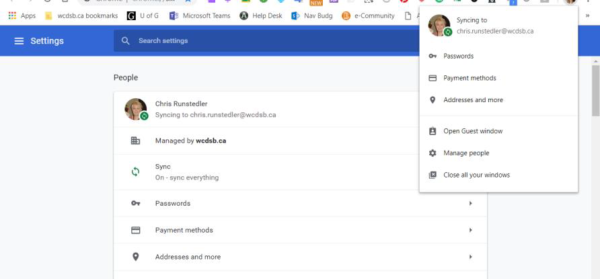
- Make sure you are logged into chrome and chrome has synched so that you see your apps (if not go into settings and turn synch on; link data)
- Then on the URL bar, choose the color waffle
 to get to the WCDSB app catalogue; choose snapverter
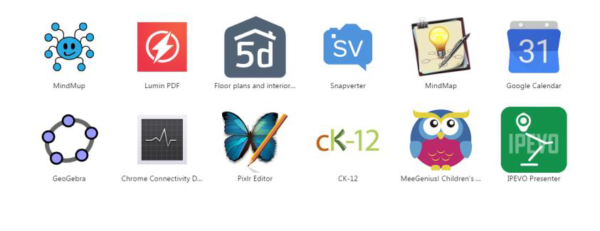
- Click on it and some grant the permission pop-ups that will appear. It will now be added as a folder to your google drive.
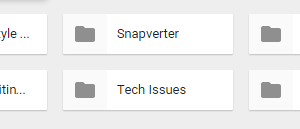
- Snapverter consists of 4 subfolders

- From your Google Drive apps, scroll until you find ‘Snapverter’.
- Uploading or Moving a file to ‘Snapverter’
- A picture taken with your phone (students can take pictures of a ‘text’ page and have Snapverter convert it to be ‘accessible’ so it can be read. Your phone will save it as a .jpeg file
- A pdf file
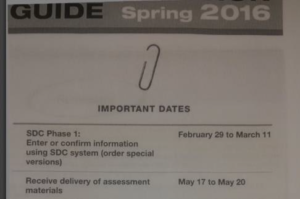
- Upload the file to your google drive. If your phone allows you to access your google drive you can upload it directly into the Snapverter/Drop here to convert file
- Uploading to Google
- Go to your drive. Open the Snapverter/’Drop here to convert’ folder
- Upload the photo into this folder (or move it into that folder)
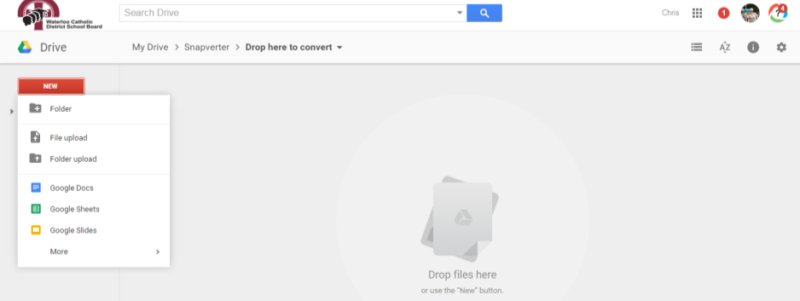
- Uploading to Google
- The file will automatically try to convert and it will appear in the finished or failed folder.
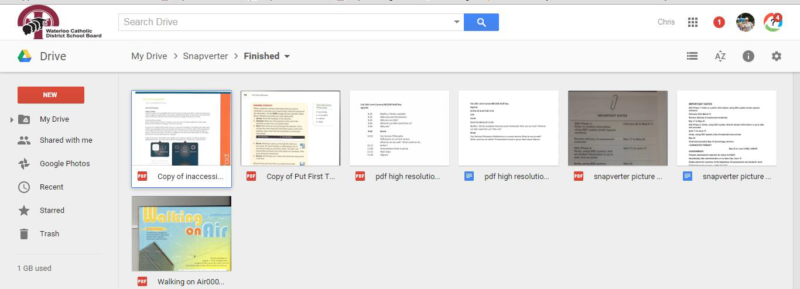
- Upload the file to your google drive. If your phone allows you to access your google drive you can upload it directly into the Snapverter/Drop here to convert file
- Open the ‘accessible file’ with with PDF Read and Write.
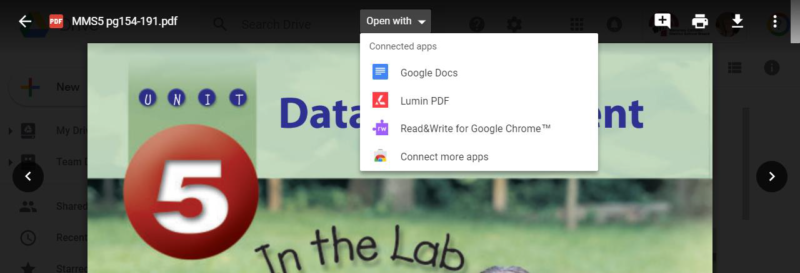
- Open the converted file by right mouse clicking on file and selecting ‘open with’ ‘Read and Write for Google. Google also allows you to open the file with Google docs but this only pulls out all of the text and the page will look different than the original file.
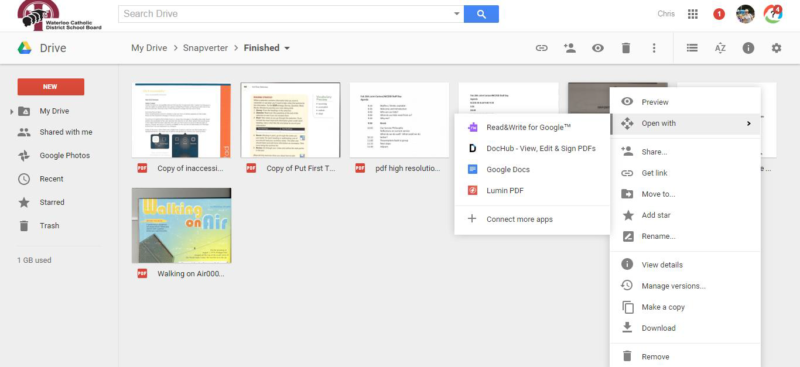 You can also click on the pdf file and you will get the choice ‘open with’
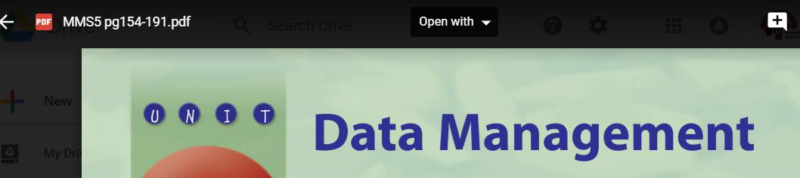 Choose ‘Read and Write’ for Google Chrome
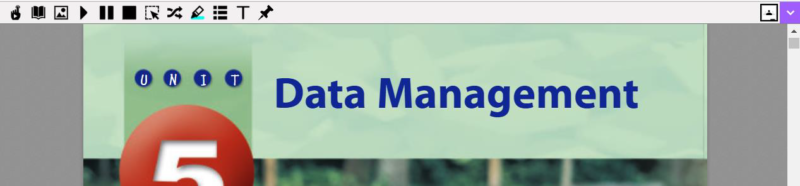
 You will now see the pdf reader toolbar
- Open the converted file by right mouse clicking on file and selecting ‘open with’ ‘Read and Write for Google. Google also allows you to open the file with Google docs but this only pulls out all of the text and the page will look different than the original file.
 to get to the WCDSB app catalogue; choose snapverter
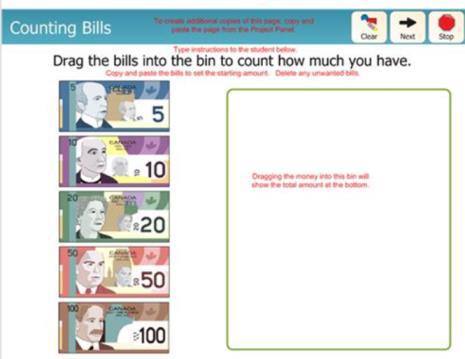
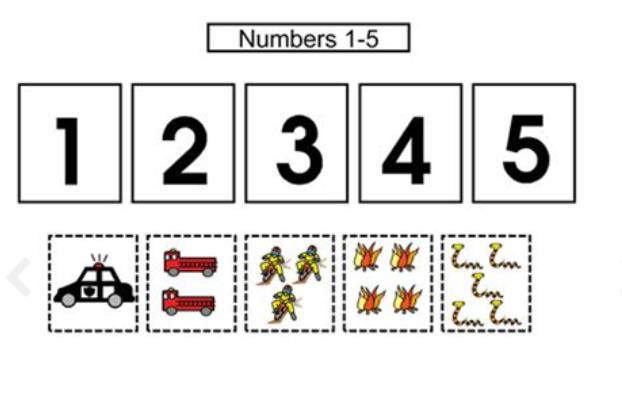
| Numeracy Activities Boardmaker has a wide variety of pre-made and ready-made templates for number sense; number sense representation; spatial sense; measurement; estimation; patterns; problem solving etc… |
 |
 |
|
| Boardmaker also has a huge resource of all other Learning Activities including Science, social studies etc…. | 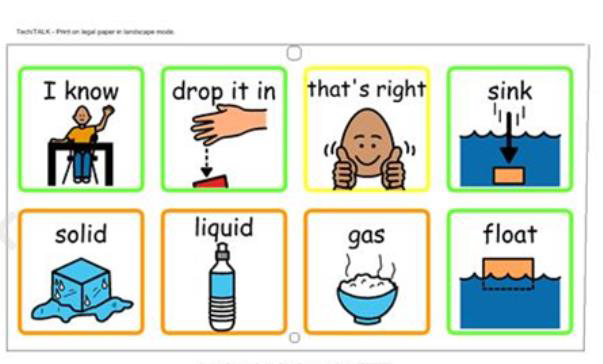 |
 |
